Troubleshooting - Sections and Access Permissions
Q1. Unable to access elements in a diagram located in a different package
Description
The customer was unable to access elements in a diagram that are located
in a different package.
Troubleshooting steps
The error message "No
access to the Artifact" appears as the user does not have access to
the package that has the elements. The user currently has access to the diagram
only.
In order to resolve this issue,
please follow the steps mentioned below.
1. Grant access to the Package
by navigating to Menu -> Access Permissions.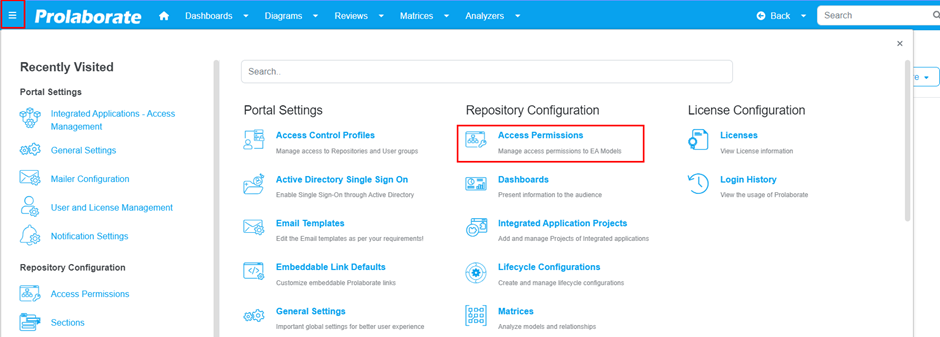
2. Navigate to the Package with
the elements.
3. Select the user that needs
access, specify the type of access as required, and click on "Add".
Please refer to the screenshot below.
1. You can grant the whole
package or at least the specific elements in the package.
2. The user must have at least
Read access to the Package or element.
Reference
Ticket ID: #8544
Subject: Prolaborate 5.1 -
Access Denied to edit artifact
Department: Prolaborate Support
Q2. "Unexpected Error occurred" when configuring sections in Prolaborate.
Description
Customer faced "Unexpected Error occurred" when configuring sections in Prolaborate.
Possible Reason
Unexpected errors may occur if the EA Schema is not executed properly in the EA database. First, we need to check the EA database tables to see whether the EA schema is executed correctly. If the EA Schema is not executed properly, follow the steps below.
- Download the schema from this link.
- Download both the EA Schema and the EA Base Schema.
- Execute the EA Schema in the database first, followed by the EA Base Schema.
- After execution, verify it by the proper execution by checking the tables in the database (as shown in the screenshot below).
Reference
Ticket ID: #10456
Subject: FW: AW: RE: RE: RE: RE: RE: RE: Fwd:RE: RE: RE: RE: RE: AW: RE: AW: RE: Thank you for taking the Sparx Prolaborate Trial - Hamm AG
Department: Prolaborate Support
Tags
Repository configuration , Database error ,unexpected error, sections, Access denied , no access to artifacts , access permission , edit artifact
Related Articles
FAQ's - Sections and Access Permissions
Q1: Can Prolaborate update data e.g. Notes or Tagged value even if my EA permissions is set to read only? Answer EA and Prolaborate access permissions are different. The Prolaborate users have different access permissions. So, the users will be able ...Known issue: Access denied error when clicking SSO in Prolaborate(Autoscaling environment)
"Access denied" error when clicking SSO in Prolaborate. Description: The customer reported being unable to access Prolaborate. When clicking the SSO, they encountered an "access denied" error in Prolaborate. Possible Reason: As confirmed by the Dev ...Known Issue - Confluence
Q1. Failed connection in Confluence and Jira Integration Description Customer reported that they are unable to establish connection in both Confluence and Jira with Prolaborate. Customer shared the below screenshots of the configurations, Resolution ...Troubleshooting: Unexpected Error Occurred in Sections
Description "Unexpected Error occurred" when configuring sections in Prolaborate. Possible Reason Unexpected errors may occur if the EA Schema is not executed properly in the EA database. First, we need to check the EA database tables to see whether ...Open Community Access
Open Community Access Open Community Access (OCA) provides read-only access to the entire repository in Prolaborate. Users can access repository information on live with a short URL link which does not require any authentication. Prerequisites Open ...